Microsoft Teams connector
The Teams connector exposes the Microsoft Graph Teams API as a set of MCP tools (read chat messages, send messages to channels, list channels and teams) through the PolicyArc gateway. Every tool call carries the caller's own Microsoft OAuth token, so Teams' per-user permissions apply naturally.
You must have the Microsoft Entra ID identity provider connected first. The connector reuses the same Entra app registration — make sure it has the Microsoft Graph delegated permissions:
Chat.Read,Chat.ReadWriteChannelMessage.Read.All,ChannelMessage.SendChannel.ReadBasic.AllTeam.ReadBasic.All
These are documented in Step 7 of the Microsoft IDP setup.
Step 1 — Open the Add Connector screen
Open Resources → Add connector (or click Pick a connector from the environment dashboard).
In the Unlocked by your identity providers section, the Microsoft Teams template will show a green border once the Microsoft IDP is connected.
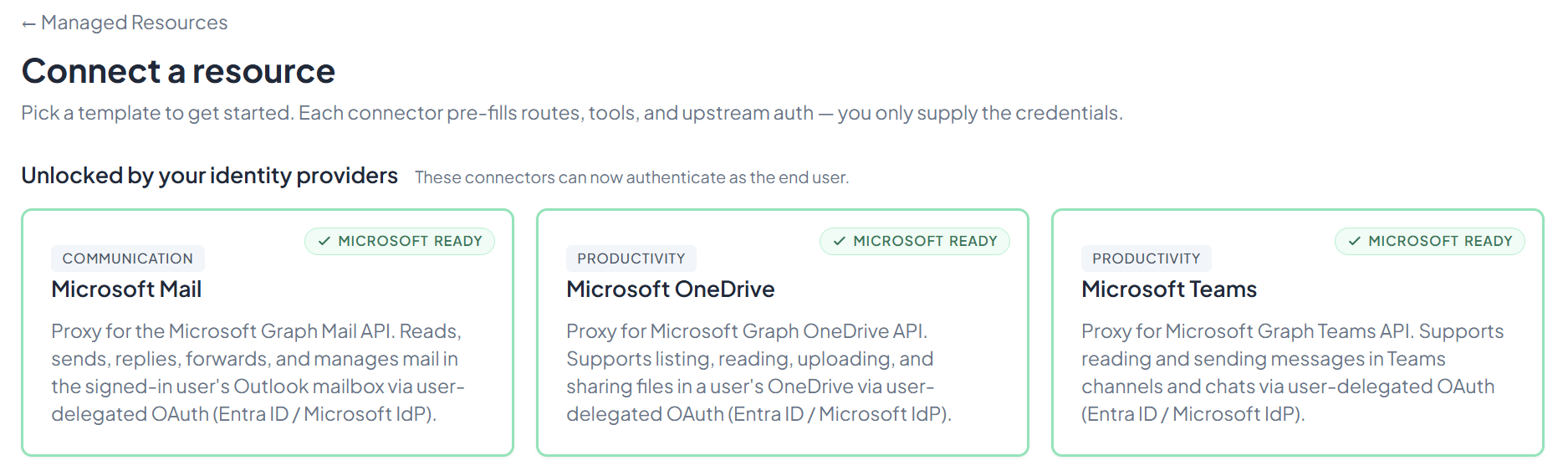
Click Microsoft Teams.
Step 2 — Connect
Microsoft Teams's setup form opens on the Authentication mode, pre-filled with entra_refresh (recommended). Two modes are available:
entra_refresh(default) — PolicyArc uses the refresh token obtained at sign-in to mint a per-user Graph token at call time. Works alongside any other Microsoft connector (Mail, OneDrive, Azure DevOps) in the same session with a single sign-in. No separate gateway app required.idp_passthrough— forwards your Microsoft sign-in token straight to Graph. Use this only when every Microsoft connector you run targets Microsoft Graph (Mail, OneDrive, Teams) and the sign-in is audienced for Graph. Don't combine it with Azure DevOps or withentra_refreshconnectors.
Leave it on entra_refresh unless you specifically want the direct-passthrough path, then click Connect.
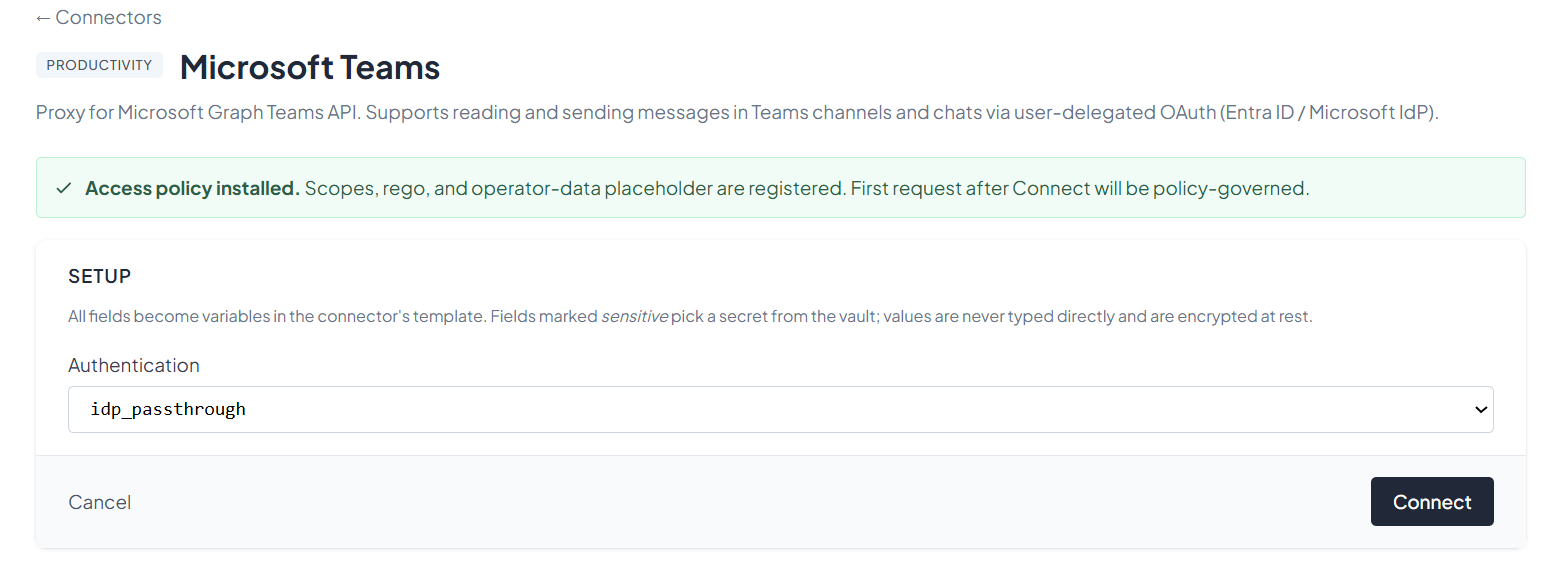
Step 3 — Confirm the connector
After connecting, you'll see the connector's status screen with the available Teams tools. The connector is policy-governed from the first request.
You can return to this view any time from the Resources menu by clicking View on the Microsoft Teams entry.
What's next
The Teams tools are now on your gateway. Pick an MCP client to wire up:
- Recommended: Claude Code — fastest path to verify end-to-end.
- All MCP clients →